
Premium Indicators
Overview of AlgoAlpha's four premium TradingView indicators and how to set them up.
AlgoAlpha offers four premium indicators that run natively inside TradingView. Each indicator is delivered as an invite-only script — once your subscription is active, the indicators appear in your TradingView indicator library automatically.
Available Indicators
Smart Signals Assistant
ML-powered signal engine with trend detection, reversal identification, and scalping modes. Includes five confluence modules for signal confirmation.
ILPAC
Institutional liquidity and price action concepts. Detects liquidity zones, market structure shifts (BOS/CHoCH), and FOMO conditions.
Momentum Concepts
Six oscillator-based modules with automatic divergence detection and dynamic reversal zones.
Strategy Builder
No-code backtesting tool with AND/OR logic combinators and comprehensive profit-and-loss reporting.
Setting Up Your Indicators
Step 1: Verify Access
Before adding indicators, confirm that your subscription is active and your TradingView username has been submitted. See Get Access for details.
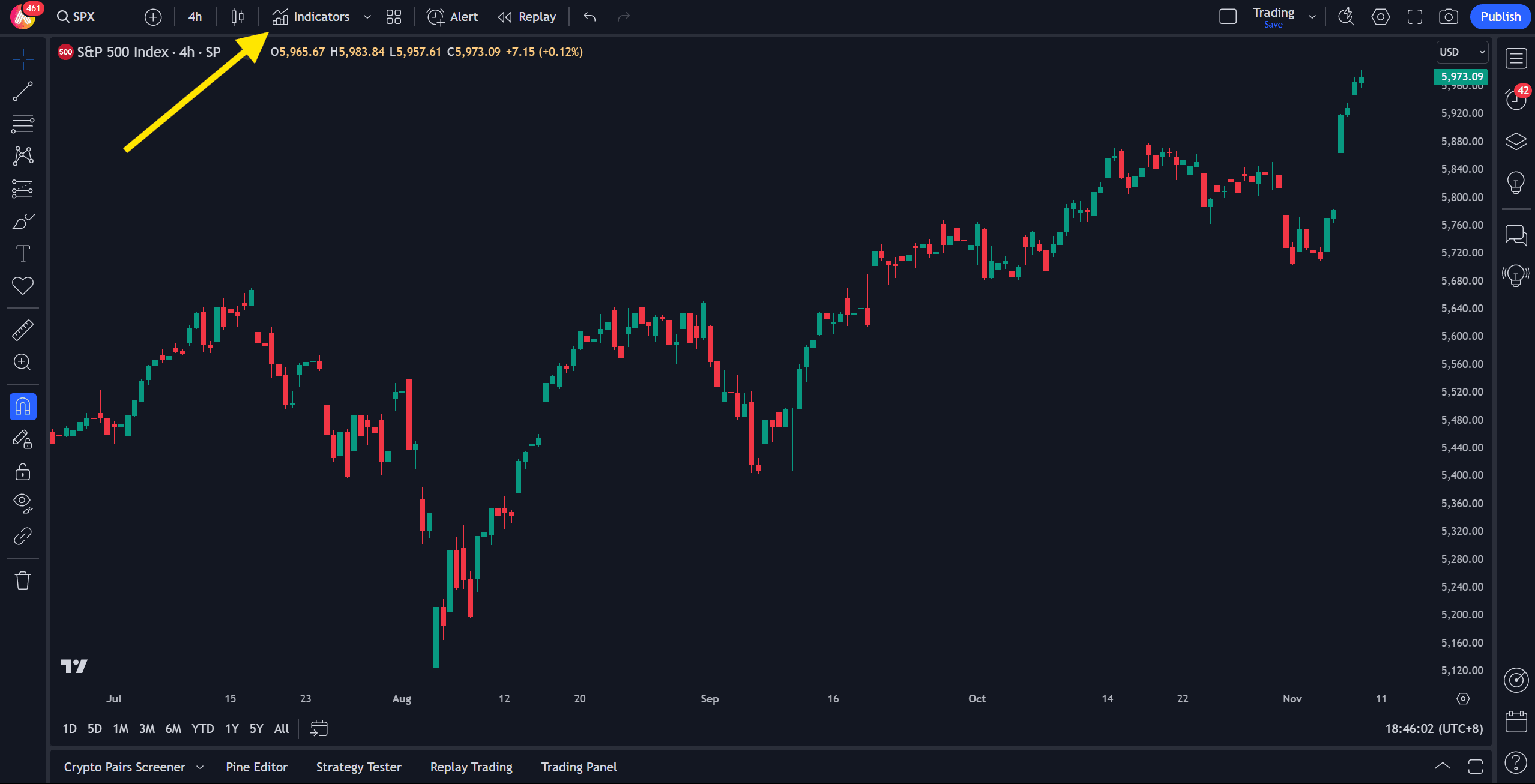
Step 2: Open the Indicator Library
- Open any chart on TradingView
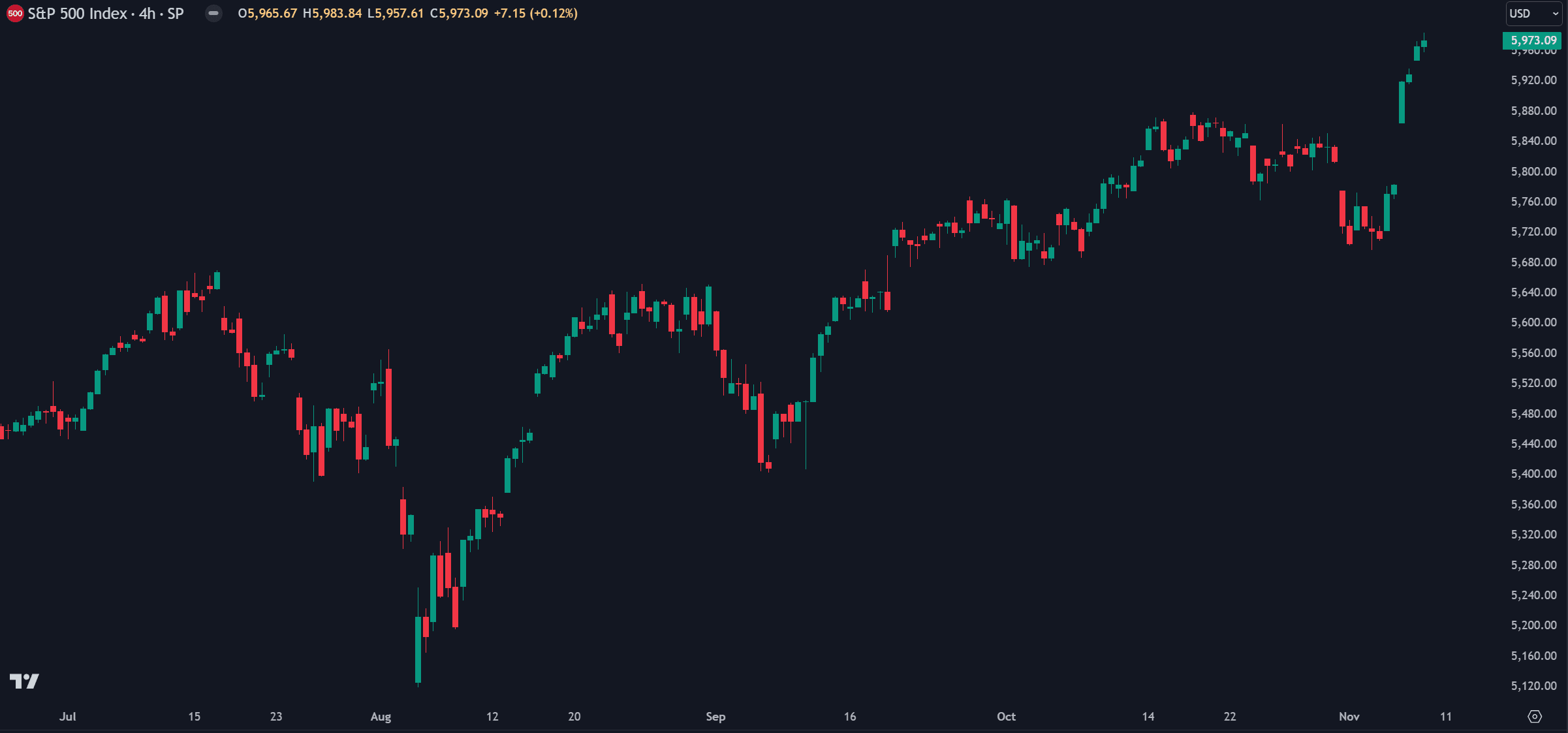
- Click the Indicators button in the toolbar (or press
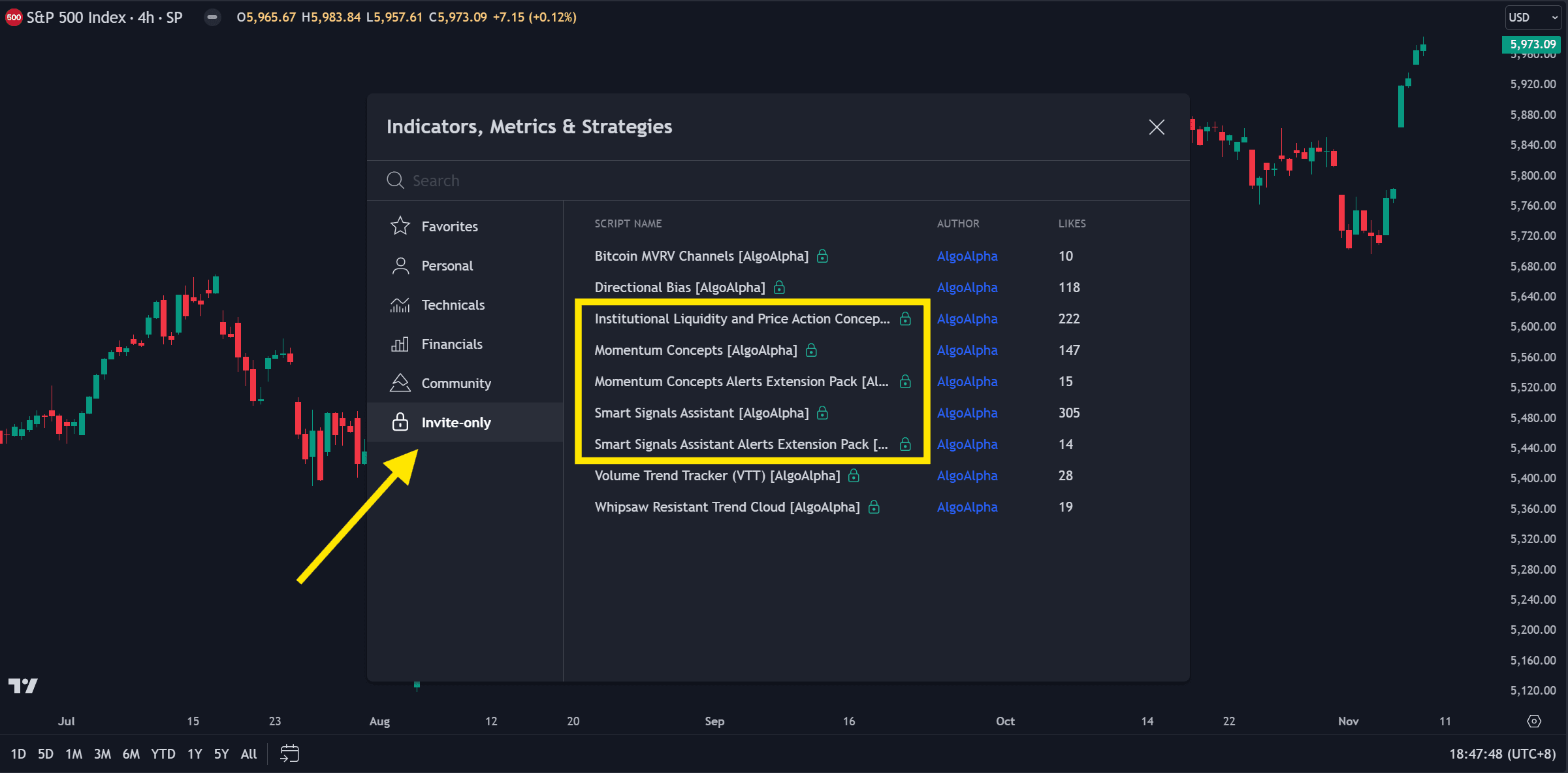
/) - Select the Invite-only scripts tab
You should see the AlgoAlpha indicators listed. If they do not appear, wait up to 24 hours after submitting your username, then contact support.
Step 3: Add to Chart
Click on any indicator to add it to your active chart. The indicator will load with default settings, which you can customize through the settings panel (gear icon).
Step 4: Configure Settings
Each indicator has a settings panel where you can:
- Adjust sensitivity and signal frequency
- Toggle individual modules on or off
- Customize colors and visual elements
- Set up alert conditions
Refer to each indicator's dedicated documentation for a full settings breakdown.
General Tips
- Start with defaults — The default settings are tuned for general use. Adjust only after you understand what each parameter controls.
- Match the timeframe to your style — Scalpers should use lower timeframes (1m-15m), swing traders should use higher timeframes (1H-1D).
- Combine indicators thoughtfully — Using multiple AlgoAlpha indicators together can provide confluence, but avoid overloading your chart.
- Save your layout — After configuring, save your TradingView layout so your settings persist.
Troubleshooting
If an indicator produces an error after being added to a chart, see Runtime Error Troubleshooting for common solutions.