
Alerts
How to set up TradingView alerts for Smart Signals Assistant signals.
The Smart Signals Assistant supports TradingView's native alert system, allowing you to receive notifications for any signal type without watching the chart continuously.
Setting Up Alerts
Step 1: Open the Alert Dialog
- Right-click on the chart and select Add Alert, or click the Alert button (clock icon) in the TradingView toolbar
- In the Condition dropdown, select Smart Signals Assistant
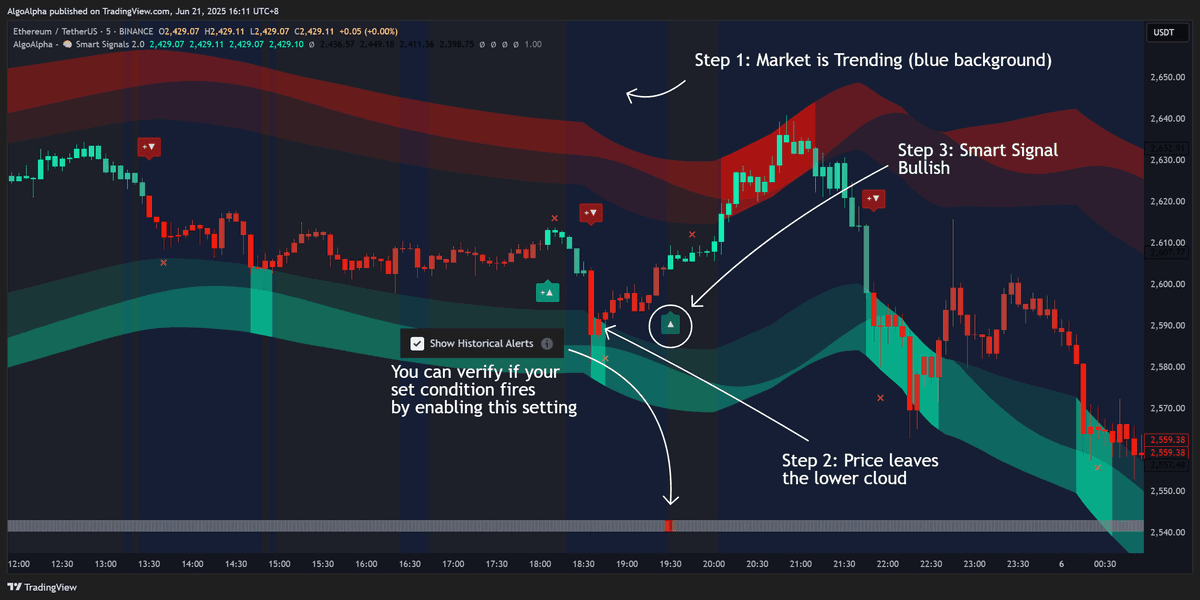
Step 2: Choose the Alert Condition
The SSA provides multiple alert conditions:
| Alert Condition | Triggers When |
|---|---|
| Buy Signal | A bullish entry signal appears |
| Sell Signal | A bearish entry signal appears |
| Strong Buy Signal | A high-confluence bullish signal appears |
| Strong Sell Signal | A high-confluence bearish signal appears |
| Bullish Exit | A long exit signal appears |
| Bearish Exit | A short exit signal appears |
| Trend Change (Bullish) | The trend direction shifts from bearish to bullish |
| Trend Change (Bearish) | The trend direction shifts from bullish to bearish |
| Any Signal | Any of the above conditions is met |
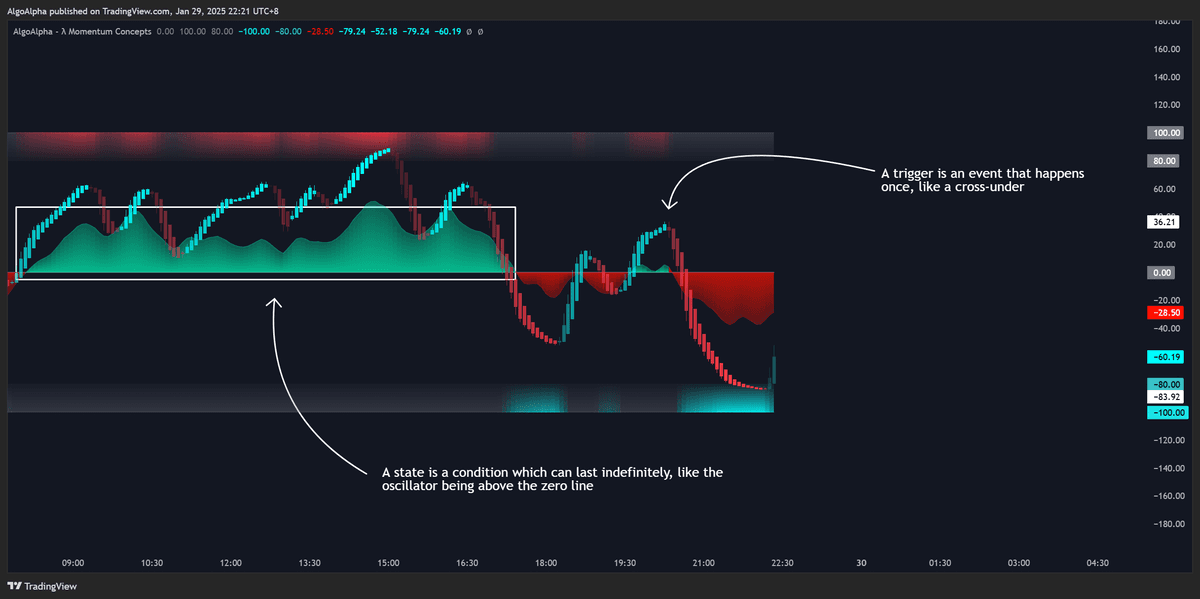
Step 3: Configure the Alert Message
You can customize the alert message to include dynamic information about the signal. TradingView supports placeholders that the SSA fills in at alert time.
See Plot Mapping for the full list of available placeholders and plot values.
Step 4: Choose Notification Channels
TradingView can deliver alerts through:
- Pop-up notification on the TradingView website
- Email to your registered address
- Mobile push notification through the TradingView app
- Webhook to an external URL (useful for automation and bot integration)
- SMS (available on some TradingView plans)
Step 5: Set Alert Expiration
Choose how long the alert remains active:
- Once — Triggers one time, then deactivates
- Once per bar — Triggers at most once per candlestick
- Once per bar close — Triggers only when the bar closes (avoids signals that repaint mid-bar)
- Every time — Triggers every time the condition is met
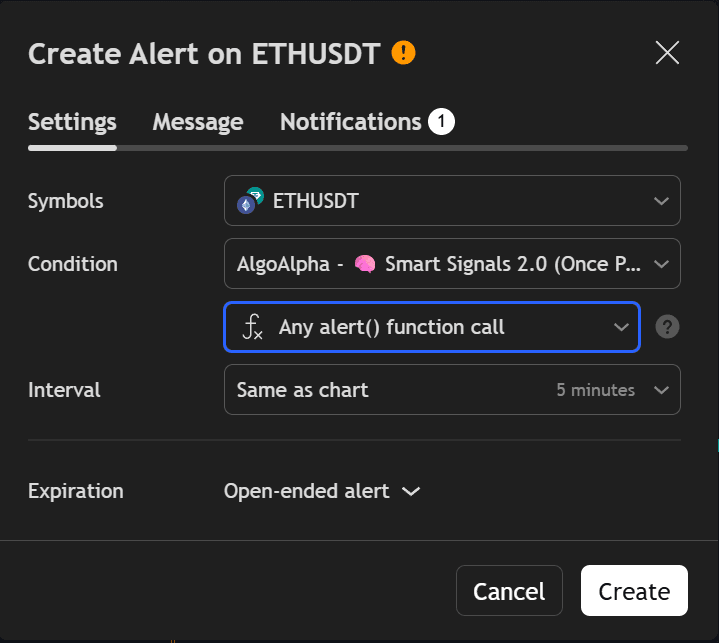
For the most reliable signals, use Once per bar close. This ensures the signal is confirmed at the bar's close and will not repaint.
Webhook Integration
Webhooks allow you to send alert data to external services for automated trading or logging. To set up a webhook:
- In the alert dialog, enable the Webhook URL option
- Enter the URL of your receiving service
- Customize the Alert message body with the data your service expects (typically JSON)
Example webhook message format:
{
  "signal": "{{strategy.order.action}}",
  "symbol": "{{ticker}}",
  "price": "{{close}}",
  "time": "{{time}}"
}
Webhook alerts require a paid TradingView plan (Essential or higher). Free accounts cannot use webhooks.
Managing Alerts
- View active alerts — Click the clock icon in TradingView's right panel
- Edit an alert — Click the pencil icon next to any alert
- Pause an alert — Toggle the alert off without deleting it
- Delete an alert — Click the trash icon
TradingView imposes limits on the number of active alerts based on your plan:
| TradingView Plan | Active Alert Limit |
|---|---|
| Basic (free) | 1 |
| Plus | 20 |
| Premium | 100 |
| Ultimate | 400 |
Tips for Alert Management
- Use descriptive alert names — Include the symbol, timeframe, and signal type (e.g., "SSA Buy - BTCUSDT 1H")
- Set up multiple alerts — Create separate alerts for buy and sell signals so you can manage them independently
- Combine with mobile notifications — Enable push notifications on the TradingView mobile app for time-sensitive signals
- Use bar close alerts for accuracy — Signals confirmed at bar close are more reliable than intra-bar triggers