
Screener
Using the Smart Signals Assistant built-in screener to scan multiple symbols.
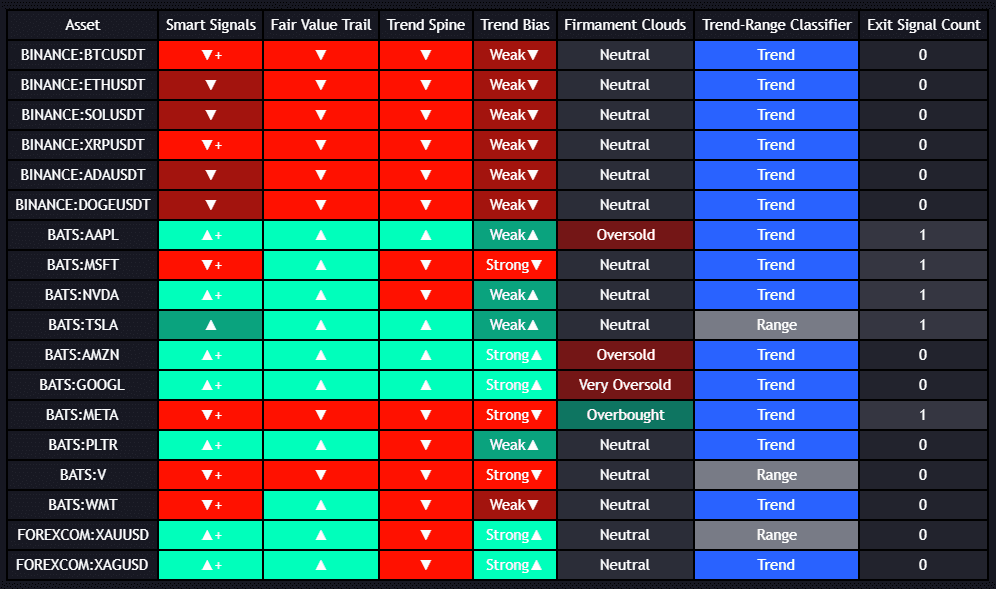
The Smart Signals Assistant includes a built-in screener that allows you to monitor multiple symbols for signal conditions simultaneously, without leaving your current chart.
What the Screener Does
The screener runs the SSA signal engine across a list of symbols you define and displays the results in a compact table overlay on your chart. For each symbol, the screener shows:
- Current signal state (buy, sell, or neutral)
- Trend direction
- Signal strength or confluence level
- Recent signal activity
This lets you quickly identify opportunities across markets without switching charts.
Enabling the Screener
- Open the SSA indicator settings (gear icon)
- Navigate to the Screener section
- Toggle Enable Screener to On
- Add the symbols you want to monitor
The screener adds computational load to the indicator. Adding too many symbols may trigger TradingView runtime errors on lower timeframes. See Runtime Error Troubleshooting if you encounter issues.
Configuring Symbols
You can add up to 10 symbols to the screener (the exact limit depends on TradingView's Pine Script constraints). For each symbol slot:
- Click the symbol input field
- Search for and select the symbol (e.g., BINANCE:BTCUSDT, NASDAQ:AAPL)
- The screener will begin processing that symbol
Symbol Selection Tips
- Use the same exchange prefix for consistency (e.g., all BINANCE pairs or all NASDAQ stocks)
- Choose liquid markets — Illiquid symbols may produce unreliable signals
- Match the asset class — Screener results are most useful when comparing similar instruments (e.g., all crypto pairs or all tech stocks)
Reading the Screener Table
The screener table displays a row for each configured symbol:
| Column | Meaning |
|---|---|
| Symbol | The ticker name |
| Signal | Current signal state: Buy (green), Sell (red), or Neutral (gray) |
| Trend | Current trend direction from the Trend Ribbon module |
| Strength | Signal strength or confluence level |
| Last Signal | How many bars ago the most recent signal occurred |
Color Coding
- Green row — Active buy signal or strong bullish trend
- Red row — Active sell signal or strong bearish trend
- Gray row — No active signal; neutral conditions
Screener Display Options
You can customize how the screener table appears on your chart:
| Setting | Options | Description |
|---|---|---|
| Position | Top Left, Top Right, Bottom Left, Bottom Right | Where the table overlay is placed on the chart |
| Text Size | Small, Normal, Large | Font size for table text |
| Background Opacity | 0-100 | How transparent the table background is |
Using the Screener Effectively
Daily Scan Routine
- Set up the screener with your watchlist symbols
- At the start of your trading session, check which symbols have active signals
- Click through to the charts of symbols showing signals for a closer look
- Apply your full analysis on those symbols before entering trades
Cross-Market Monitoring
Use the screener to track related markets. For example:
- Monitor BTC, ETH, SOL, and other major crypto pairs simultaneously
- Track sector leaders like AAPL, MSFT, GOOGL, and AMZN
- Watch major forex pairs: EURUSD, GBPUSD, USDJPY, AUDUSD
Alert Integration
The screener itself does not trigger alerts. For alert-based notifications on specific symbols, set up individual alerts for each symbol using the Alerts feature.
Performance Considerations
Each screener symbol adds processing overhead. To maintain smooth performance:
- Limit to 5-8 symbols on lower timeframes (1m-15m)
- Use up to 10 symbols on higher timeframes (1H and above)
- Disable unused confluence modules when using the screener to reduce computation
- If you encounter script errors, reduce the symbol count or increase the timeframe
The screener runs on the same timeframe as your active chart. If you want to screen for signals on the 4H timeframe, set your chart to 4H before checking the screener results.