
Screener
How to use the ILPAC multi-asset screener to monitor market structure events across up to 18 tickers simultaneously.
The ILPAC Screener is a built-in dashboard that monitors up to 18 assets simultaneously for market structure events — all from a single TradingView chart. Instead of flipping between charts to check for BOS and CHoCH signals, the screener presents a real-time overview of structural conditions across your watchlist.
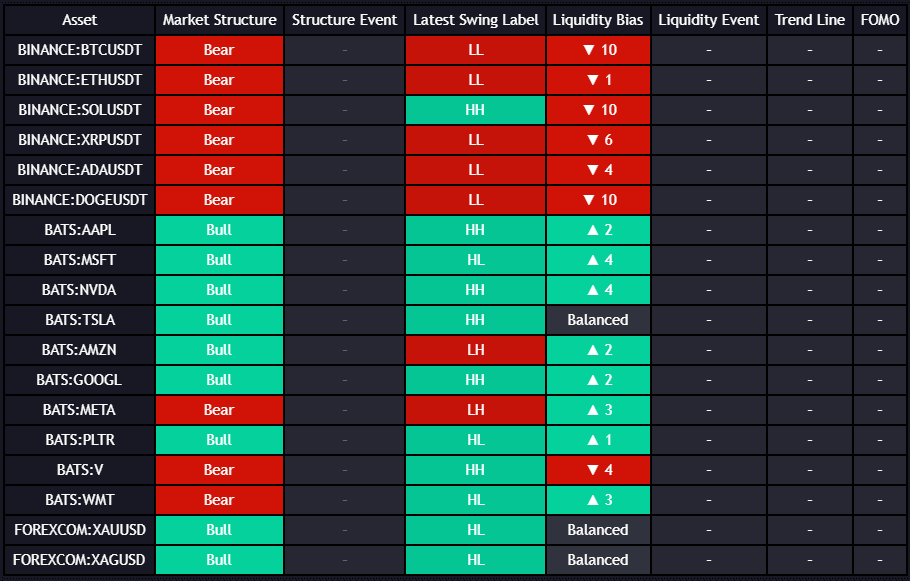
What the Screener Shows
For each ticker in the screener, ILPAC displays:
| Column | Description |
|---|---|
| Ticker | The symbol being monitored |
| Structure | The most recent market structure event (BOS or CHoCH) and its direction (bullish or bearish) |
| Trend | The current trend state based on swing structure (bullish, bearish, or ranging) |
| Signal | Whether a fresh structural event has occurred within a recent lookback window |
The screener updates in real time as new bars close across all monitored tickers.
Setting Up the Screener
- Open the ILPAC indicator settings on your chart
- Navigate to the Screener section
- Toggle Show Screener to On
- Enter up to 18 ticker symbols in the provided input fields
- The screener panel will appear on your chart as a table overlay
The screener uses the same timeframe as your current chart. If you want to monitor 4-hour BOS events, set your chart to the 4-hour timeframe. The screener will analyze all tickers on that timeframe.
Choosing Tickers
You can enter any TradingView-compatible ticker symbol. Common configurations include:
- Crypto majors: BTCUSDT, ETHUSDT, SOLUSDT, BNBUSDT, etc.
- Forex pairs: EURUSD, GBPUSD, USDJPY, AUDUSD, etc.
- Stock indices: SPX, NDX, DJI, etc.
- Individual stocks: AAPL, TSLA, NVDA, MSFT, etc.
- Mixed watchlist: Combine assets from different markets for a diversified overview
Ensure you use the full ticker format including the exchange prefix if needed (e.g., BINANCE:BTCUSDT or NASDAQ:AAPL).
Using the Screener Effectively
Scanning for Trade Setups
The screener lets you quickly identify which assets are experiencing structural shifts. A CHoCH event on an asset you were not actively watching could present a trading opportunity you would otherwise miss.
Filtering by Event Type
Focus on specific columns to filter your attention:
- Fresh BOS signals: Identify assets in strong trending conditions for momentum trades
- Fresh CHoCH signals: Spot potential reversal candidates across your watchlist
- Trend column: Quickly see which assets are bullish, bearish, or ranging
Combining with Chart Analysis
When the screener highlights an event on a particular ticker:
- Note the ticker and event from the screener panel
- Switch your chart to that ticker for detailed analysis
- Review the full ILPAC overlay (market structure, heatmap, trendlines) on that asset
- Decide whether the setup meets your trading criteria
Limitations
- The screener is limited to 18 tickers per instance — this is a TradingView Pine Script constraint
- All tickers are analyzed on the same timeframe as your chart
- The screener adds computational load; on lower-end devices, running the full 18-ticker screener may slow chart rendering slightly
- Screener data refreshes as new bars close — it does not provide tick-by-tick updates between bars
Screener Settings
| Setting | Description |
|---|---|
| Show Screener | Master toggle for the screener panel |
| Ticker 1–18 | Individual ticker symbol input fields |
| Panel Position | Choose where the screener table appears on your chart |
| Text Size | Adjust the font size of the screener table for readability |